
Follow the steps below to refresh or reconnect your Google Business reviews within your website dashboard.
Access your website admin panel.
From the left sidebar, click Google Reviews.
Select Widgets from the Google Reviews section.
You will see a list of existing widgets (normally, there is just one , your main Google Business Profile widget).

If your business is already listed and connected, simply click Update Reviews from the right sidebar.
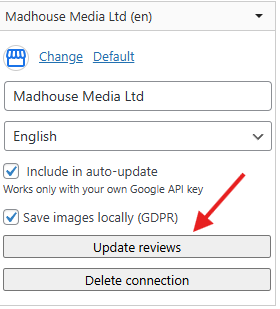
In most cases, this will refresh your Google reviews automatically.
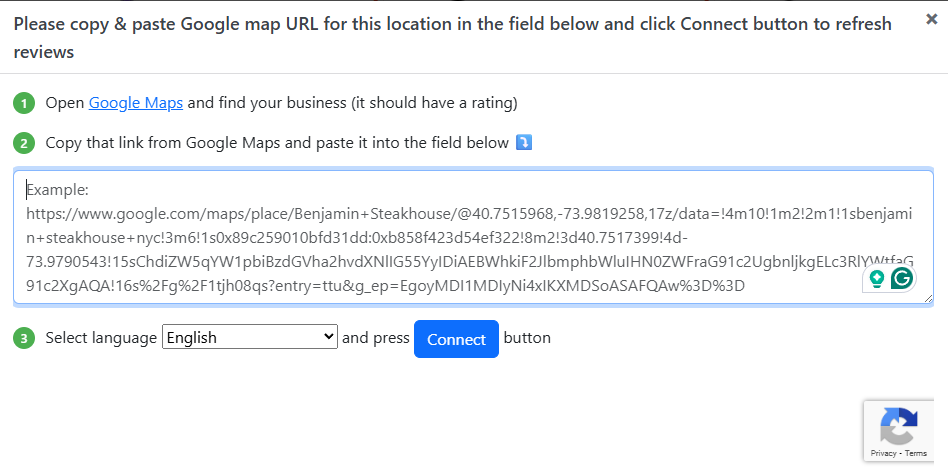
If you are prompted to enter your Google Business Profile URL, follow these steps:
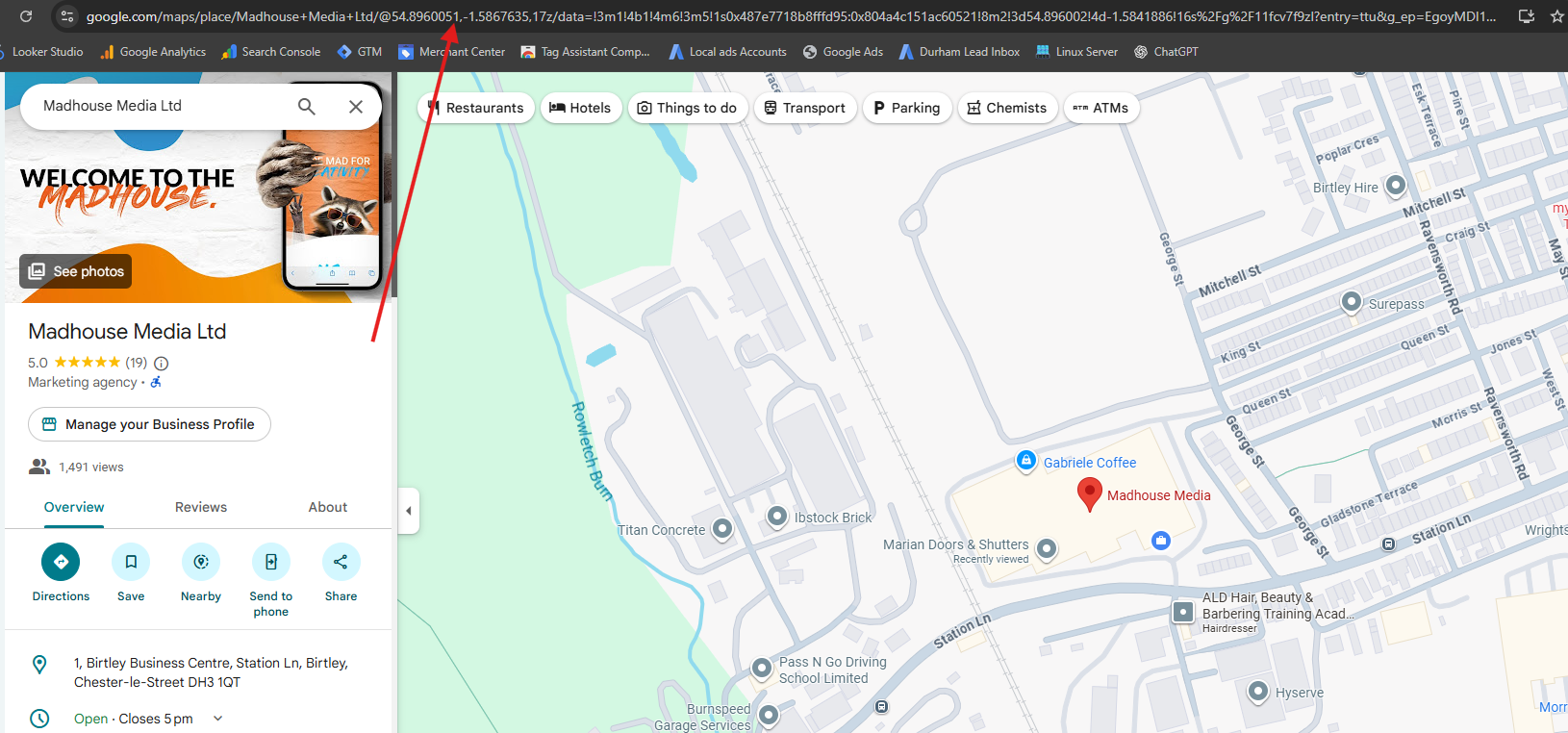
Visit: https://www.google.com/maps
Search for your business.
Click on your business listing.
Copy the entire URL from your browser address bar.
Paste the URL into the field where the website requests it (refer to Image 2).
The system should now detect your business and display a Connect button.
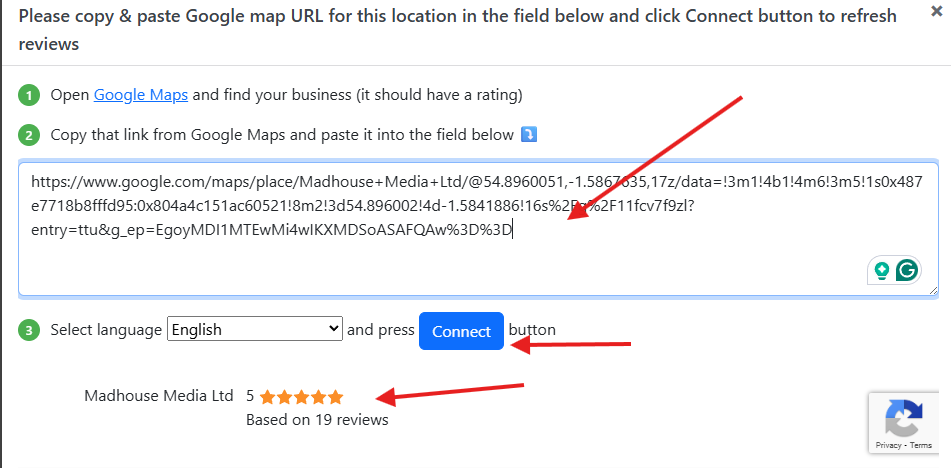
Verify the business shown.
Click Connect to complete the relinking process.
Clean up Duplicate entries :
After reconnecting, you may see your business listed multiple times in the right sidebar.
If duplicates appear, delete the old connection(s) and keep only the new active one.
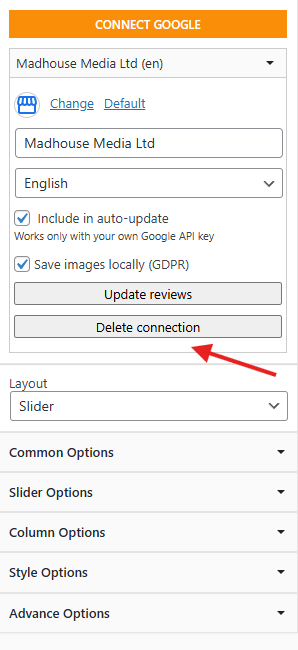
Ensure you click Save or Update so all changes are stored successfully.
If any further issues, Please raise a support ticket